Runs on what you already own.
Both Legacy and Cloud versions are designed to work on the computer already in your exam lane — no special hardware required.
AcuityMaster Legacy
| Component | Requirement |
|---|---|
| Operating System | Windows XP, 7, 8, 10, or 11 |
| Runtime | .NET Framework 4.0 or higher |
| RAM | 1 GB minimum |
| Disk Space | 5 MB free |
| Display | Primary monitor + optional patient display (HDMI/VGA) |
| Internet | Required for activation only |
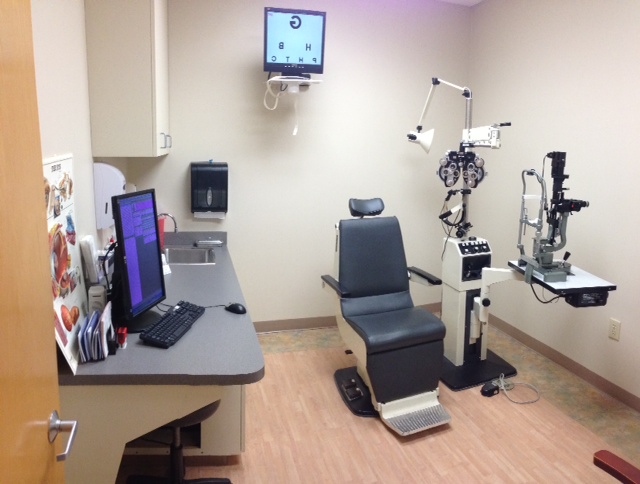
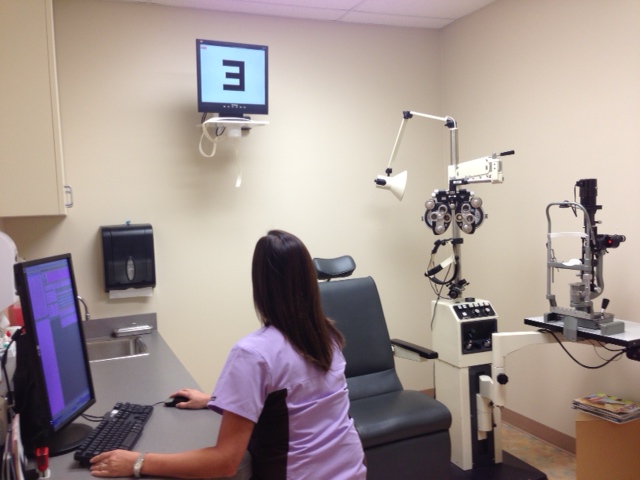
Dual-monitor setup
Most practices share one computer between EMR and AcuityMaster. With a dual-output video card, the first display drives the EMR; the second drives the patient-facing chart.
- Video card with dual video output
- 20–24″ LCD/LED monitor with HDMI (∼$150)
- For video fixation: monitor with built-in speakers (audio over HDMI)
All-in-one option
A refurbished Dell OptiPlex AIO (models 2330, 2320, or 9010) mounted on the wall is often available from Dell Outlet for under $350. Mount directly in front of or behind the patient with a mirror.
AcuityMaster Cloud
| Component | Requirement |
|---|---|
| Browser | Safari 16+, Chrome 110+, Firefox 115+, or Edge 110+ |
| Operating System | macOS 12+ or Windows 10/11 |
| Display | Any monitor; second display optional for patient chart |
| Internet | Standard broadband required |
| Installation | None — fully browser-based |
| Hardware | Works on existing exam-lane computer |
AcuityMaster Cloud launches August 1, 2026. If you already have a Mac or Windows computer in your exam lane with internet access, you have everything you need. Register your interest to be notified at launch.
Dual-monitor setup (Cloud)
AcuityMaster Cloud supports extended/mirrored display mode. Use your primary display for clinician controls and the second display for the patient-facing chart — or run single-screen mode from any computer.
Standards we meet
The following standards apply to both Legacy and Cloud versions. Letter sizes are calibrated to the patient-to-screen distance you configure during setup.
| Standard | Requirement | Status |
|---|---|---|
| ANSI Z80.21 — Luminance | Background luminance 80–320 cd/m² | ✓ Met by all current monitors |
| ISO 8596 — Contrast | Optotype luminance ≤15% of background | ✓ Met by all LCD/CRT monitors |
| Color temperature | White background 2500K–7000K | ✓ Met by all current monitors |
Try AcuityMaster in your own office.
15-day fully functional trial. No risk, no obligation.